THE TRADE PLACER INSTRUCTIONS & FAQ
The Trade placing tool a wonderful tool designed to make placing trades so much easier and convenient for YOU.
Saving you time and stress, in eliminating mistakes that can result in you placing trades with too high a lot size or possibly missing opportunities.
When you download POGO you will see you have a file called TradePlacer.ex4. You will need to copy this file and open your terminal and click on FILE - Open Data Folder
Then click on MQL4 – then Experts – then paste the Trade Placer file in this area
Then close the box, and close the terminal.
Then reopen the terminal and you will see The Trade Placer in your Terminal Navigator
To access your Navigator – got to VIEW - NAVIGATOR and it will open on the left side of your chart.
Watch the video below which will show you how to load Trade Placer on your terminal (this does refer to POGO EA but the process is the same)
Once you can see The Trade Placer in your Navigator section it is ready to use.
All you need to do is The Following -
1) to open the chart you want to trade (example EURUSD)
2) Got to the time frame you want the trade to EXECUTE – THIS IS CRITICAL – ALWAYS PLACE THE TRADE PLACER ONTO THE CHART YOU WANT YOUR TRADE TO EXECUTE ON
3) Ensure that Auto Trading is clicked (this is along the top of your screen)
4) Drag The Trade Placer onto your chart and drop it
A dialogue box will open and you need to do the following –
1) Go to Common and tick Allow Live Trading (this MUST ALWAYS BE TICKED)
2) Go to Inputs and adjust the variables as you wish (this is covered extensively further down under the section – Your Input Options
Order Type - It is defaulted to Buy_at_Market to change this simply click on the text and select from the drop down list which includes the following options
1) Buy_at_Market
2) Sell_at_Market
3) Buy Stop
4) Sell Stop
5) Buy Limit
6) Sell Limit
Risk Percent – Input the amount you want to risk on the trade you can go as high as 10% and you can also include decimal points like 0.1% as well.
Open Price Only for Stops and Limits - This is your entry price you want to enter the trade – you leave this blank if you are buying or selling at market.
Stop Loss - Input the stop loss you would like - it will not allow you to place a trade without a stop loss – also if the stop loss is too close to entry or the wrong way to the entry you will get an error
TP Multiplier - You can chose to use this as a multiplier rather than inputting a take profit value – this is quick and also less prone to errors as it will always place the take profit correctly. You can set this as high as you like. A 1 will mean a 1:1 reward to risk a 5 will be a 5:1 reward to risk. If you elect to input a value you need to set this field to 0
Expiry Date and Time - You can not set an expiry within 15 minutes of placing the trade - it has to be later than 15 minutes. Also it will always broker time that the timer will be set at.
If you wish to input an expiry, click on the date (defaulted to 1970) a calendar will dropdown – inrder to save going through all the years etc to get to todays date – click the word TODAY at the bottom of the calendar to bring it to today. Then input the time you want the order to expire
REMEMBER – it needs to be on the 24hour clock and also broker time
License Key – As you have purchased The Trade Placer you will have received two license keys for two live accounts. If you are using this on demo you can leave this as defaulted.
Comment Optional – Yu can put a comment in this section and is extremely useful if you want to keep track of the timeframe of your trades as MT4 does not record this information.
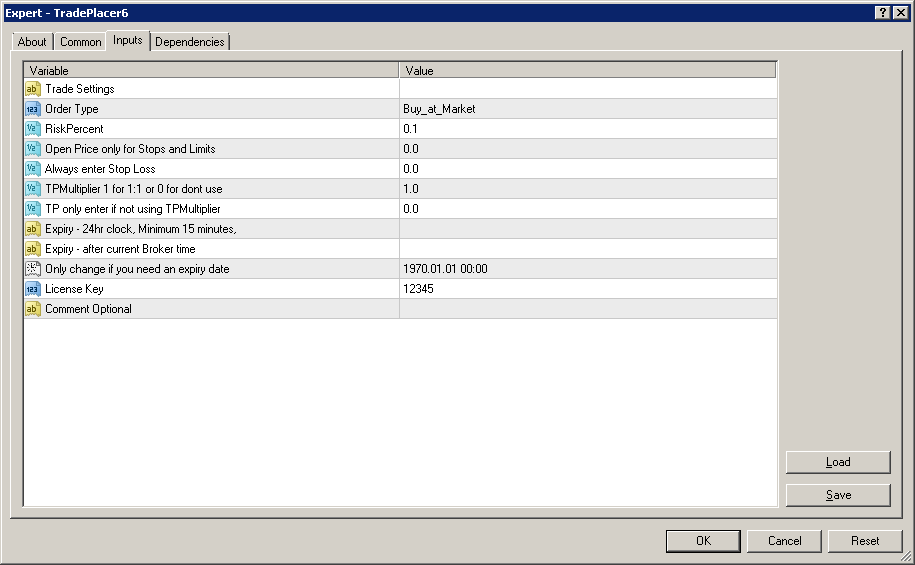
Once you are complete with the inputs, click on OK and a dialogue box will pop up showing you the parameters you have set and the risk and take profit potential of your trade – see figure below
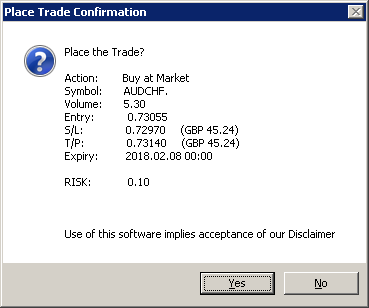
Once you are satisfied that this is correct and the trade/order you want to take – click on OK
You will then get notification of the trade/order being placed with a ticket number.
As you have purchased The Trade Placer make sure you are on our Skype support group. If you are not, please send me an e-mail to judy@tinyandjudy.com
As always, your feedback is most welcome. Any suggestions please sent to me at the above address.
Wishing you phenomenal success in your trading.
Judy van Niekerk | © 2018 Tiny and Judy Consulting Ltd | DISCLAIMER | PRIVACY POLICY